

Klipy now runs an MCP server, so an assistant like Claude or ChatGPT can connect to your account and work your CRM directly. It comes with 38 tools, a consent screen that keeps Send off by default, and a rule that nothing leaves without your approval of the exact draft.
What changed
MCP, the Model Context Protocol, is the standard that lets assistants like Claude and ChatGPT securely use outside tools. Klipy's MCP server puts your real CRM directly in your assistant, with no copy-paste and no brittle scripts. Ask a chatbot about your pipeline without it and it guesses; paste your data in and it is stale the moment you hit enter. The server closes that gap.
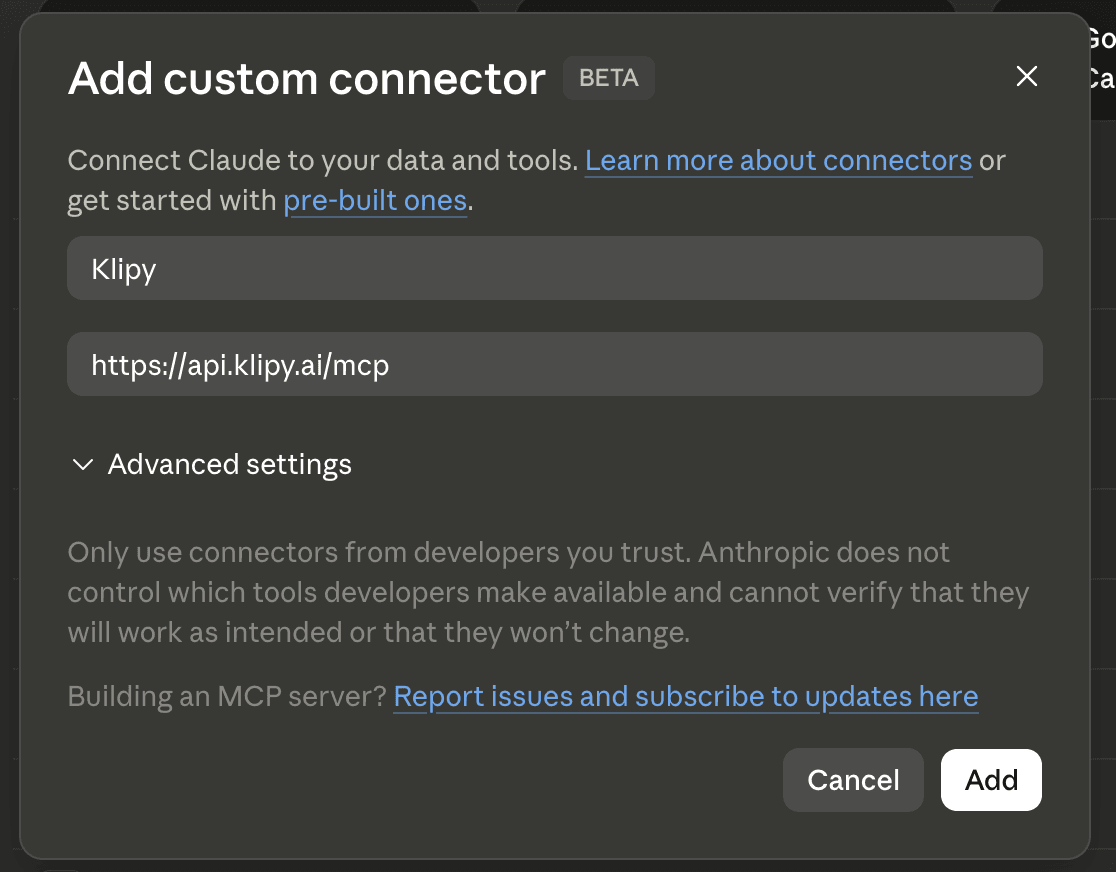
Once connected, your assistant works through 38 tools:
- Find and read: search your contacts, pull a deal's full history, read a meeting transcript, look up past interactions.
- Draft: write a follow-up email or a LinkedIn message from your real context rather than a generic template.
- Update: create and edit contacts, companies, deals, and notes, link records together, and act on Klipy's own suggestions.
- Ask: get a grounded, cited answer about your accounts, drawn from your own history.
Connecting runs through a consent screen where you choose what the assistant can do, grouped into Read, Write, and Send. Send is off unless you deliberately turn it on. Even then, nothing goes out on its own: the assistant drafts the message, and it sends only after you explicitly approve that exact draft. You can review and revoke any connected assistant anytime in Settings, under Integrations.
Who it's for
Owner-sellers who already work in Claude or ChatGPT and want those assistants grounded in their real deals instead of guesses. It turns your AI agent into one that knows your actual CRM and never sends anything you did not sign off on.
How to use it
Connect your Klipy account from a compatible assistant, then pick what it can do on the consent screen. Leave Send off to keep the assistant read and draft only, or turn it on and approve each message before it goes. Manage or revoke connections anytime in Settings, under Integrations.